

The Blue Screen of Death, an instantly identifiable sign of computer failure that appears in tech jokes, disaster films, and the occasional art installation, has been a part of the Windows experience for so long that it has become something of a cultural shorthand. Most people have at some point seen one. Fewer individuals are aware of what to do when it occurs to them, particularly if it persists or if the stop code is meaningless to them and there is no clear explanation for why the system abruptly determined that there was a major emergency.
With a BSOD, Windows is intentionally crashing, which may seem paradoxical. The operating system pauses everything when it detects a fault severe enough that it would be dangerous to keep running, such as corrupting data, harming hardware, or allowing a cascade failure to spread further. The stop code describes exactly what went wrong at the time Windows decided to stop, whereas the blue screen is the announcement. The most crucial thing to grasp before attempting to solve anything is the difference between the symptom (the blue screen) and the real issue (whatever caused it).
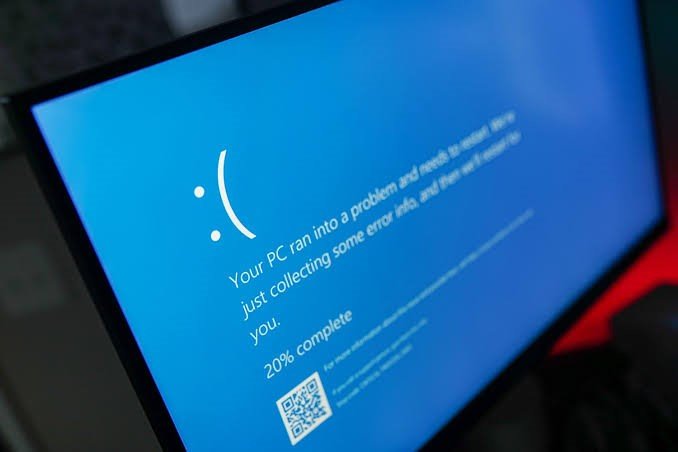
Instead of disregarding stop codes as you wait for the machine to resume, you should pay attention to them. A surprisingly helpful feature that most users are unaware of is that Windows 10 and 11 display a QR code in the corner of the BSOD screen that goes directly to Microsoft’s explanation of that particular mistake. The text stop codes CRITICAL_PROCESS_DIED, MEMORY_MANAGEMENT, and IRQL_NOT_LESS_OR_EQUAL contain accurate information regarding the location of the system failure. RAM testing is indicated by a halt code relating to memory. The type of software to look at is indicated by a code that implicates a driver. Although the search is much narrowed, not all stop codes result in the solution.
Graphics card drivers are the most prevalent specific culprit within the category of device drivers, which are the most common software-layer cause of BSODs. They function at a deep level of the system, manage large volumes of data under unpredictable circumstances, and are regularly updated, which implies that there are frequent chances for a new version to bring a conflict or a defect that manifests under particular usage circumstances. It makes sense to concentrate first when a blue screen comes following a graphics driver update or when using GPU-intensive programs like video editing software or games. More often than most people realize, driver-related BSODs can be fixed by going back to a previous driver version or downloading the most recent version from the manufacturer’s website.
Another frequent source of BSODs is RAM failure, which should be specifically tested because poor RAM can nearly perfectly imitate software issues. During a restart cycle, the Windows Memory Diagnostic tool—searchable via the Start menu—runs and looks for fault signs in physical memory. Although it doesn’t detect every kind of RAM failure, it detects enough to be a useful step in cases where recurrent crashes have not been cured by other remedies. MemTest86 is a well-respected free program that can do lengthy tests over several hours and operates independently of Windows for more comprehensive memory testing.
Although overheating is frequently disregarded as a potential reason, it’s important to investigate before presuming that software or a particular hardware component is the issue. Errors that appear as memory issues or driver failures can be caused by a CPU or GPU that is overheating when under load. Using a program like HWMonitor or MSI to keep an eye on temperatures You can determine whether thermal conditions are a variable by using Afterburner during a stress test or simply by watching what the computer does after crashes. Before changing hardware or reinstalling Windows, it is worthwhile to verify the thermal paste state and fan function of a laptop that crashes during intensive use but functions normally when idle.
The System File Checker command, sfc /scannow performed as administrator in Command Prompt, resolves non-driver-related software-layer issues. Windows can identify and replace faulty files when instructed to do so, and it protects some essential system files. It is frequently the quickest solution available when the source of the BSOD is a corrupted Windows file rather than external hardware or software, but it won’t cure hardware issues or driver conflicts. It is worthwhile to include in any systematic troubleshooting attempt because it is free to run and just takes a few minutes.
