

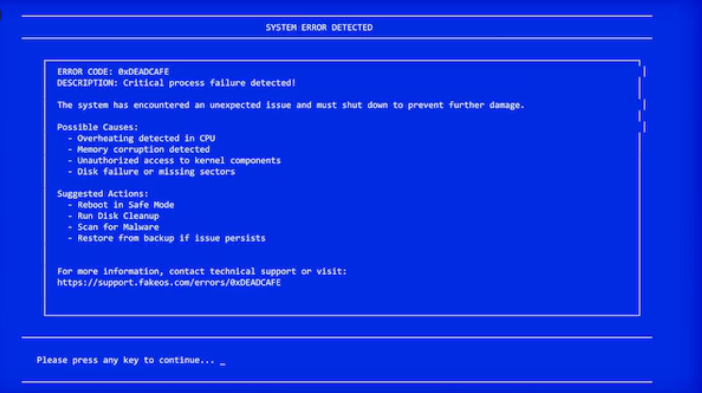
The blue screen appears out of nowhere. You may be in the middle of a paper, video, or game when all of a sudden the screen turns blue and a stop code that appears to have been designed for a completely different audience appears. KERNEL SECURITY CHECK FAILURE, PAGE FAULT IN NONPAGED AREA, and SYSTEM SERVICE EXCEPTION. Then, as time passes and dissatisfaction grows, Windows reboots—sometimes repeatedly. It’s one of the most viscerally upsetting things a computer can do, in part because it happens so quickly and in part because most people don’t know what caused it.
The Blue Screen of Death, or BSOD as it has been called since Windows 95, is the result of Windows terminating itself before a more serious issue arises. It is a deliberate safety feature rather than a problem in the sense of anything that got past testing. Instead of copying incorrect data to your drive or causing physical damage, Windows stops everything when it detects a condition it cannot recover from, such as a driver crash, memory failure, corrupted system files, or hardware conflict. The troubleshooting procedure tends to be a little less panic-driven when one realizes that it’s protective rather than disastrous.
Write down or take a picture of the stop code as soon as the blue screen shows. Because the computer frequently reboots quickly, it is easy to overlook this at the time, but your finest diagnostic tool is that code. Various codes indicate distinct causes: MEMORY_MANAGEMENT may indicate RAM problems, IRQL_NOT_LESS_OR_EQUAL frequently indicates a driver issue, and CRITICAL_PROCESS_DIED typically indicates a core Windows task failed. You can debug with a target instead of speculating if you know the code.
The easiest thing to do after restarting is to see whether any new hardware has lately been connected. If there is a driver conflict or compatibility issue, external hard drives, USB hubs, docking stations, and newly installed RAM can all result in a BSOD. A quick, simple test that resolves a surprising number of issues is to unplug everything non-essential and attempt to replicate the crash. You’ve identified the problem if you disconnect a specific device and the blue screen disappears.
Windows provides two built-in repair solutions for software-related crashes that are worth using sequentially. The first is called Deployment Image Servicing and Management, or DISM, and it fixes the Windows component store that SFC uses. Type DISM /Online /Cleanup-Image /RestoreHealth into the Command Prompt as an administrator, then wait. It need some time. After that is complete, run sfc /scannow to automatically replace corrupted Windows system files. Many BSOD scenarios brought on by corrupted or missing files can be fixed with these two instructions without the need to reinstall anything.
When a crash occurs following a Windows update or a manual driver installation, driver rollbacks are helpful. Locate the recently updated hardware (often a graphics card, network adapter, or chipset driver) in Device Manager, right-click on it, select Properties, and search for the option to roll back the driver. This can prevent crashes brought on by a poor driver upgrade and returns to the prior version.
The next step is System Restore if none of the aforementioned fixes the issue. Without affecting your personal files, this restores your Windows installation to a previous state, a restore point made before to the issue. By holding Shift while selecting Restart from the Start menu, you can access Windows Recovery options. The advanced startup environment also has a Startup Repair tool that can automatically resolve boot-level problems if the computer won’t boot consistently enough to get there.
Running chkdsk C: /r from an elevated Command Prompt will check the hard drive for logical and physical faults in crashes that manifest as delayed load times, file access errors, or strange drive noises. It can detect and flag bad sectors that may be causing Windows to crash when attempting to access corrupted storage locations, but it needs to be restarted in order to operate completely. In situations when alternative repairs haven’t worked, it’s possible that a failing disk is the root culprit. It’s far better to identify this early rather than after more data has been destroyed.
